




Radio communication works only on our TeamSpeak 3 server. Address: il2-fl.ru
You can use radio communication only on our game server while directly in the game. Radio communication is available only to users who have registered, linked their game account to the system account, and selected a coalition.
The entire registration procedure is described in detail in the article:
Account Linking.
To start using radio communication, you need to link your system account with your TeamSpeak account. To do this, log into your account on our website and go to the section where you select a coalition. If you are registered and have selected a coalition for the campaign, you will see two buttons:
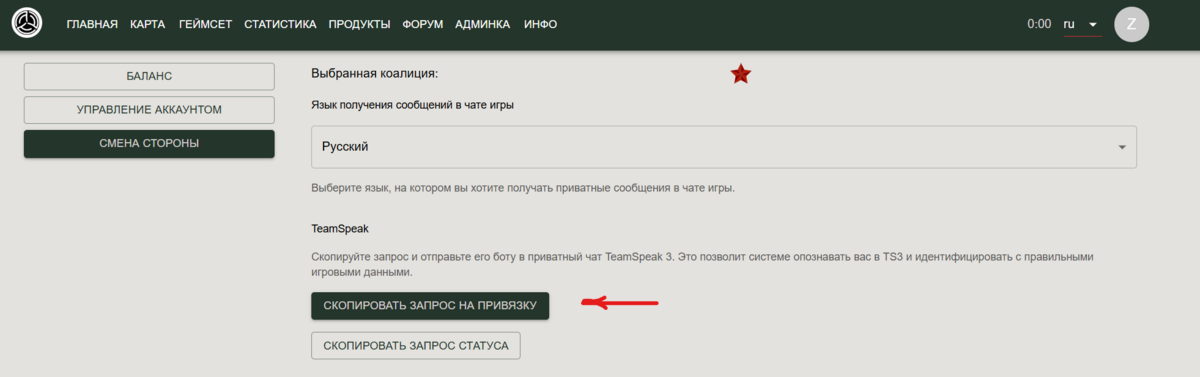
Copy linking request;
Copy status request;
The first button copies the account linking request to your clipboard. The second button copies the request to check your account status in TeamSpeak.
To link your account, click the button with the linking request. You will see the word "Copied" appear next to it. After that, go to our TeamSpeak server. At the very bottom, you will see a channel named "Registrator" where a bot with the exact same name will be located.
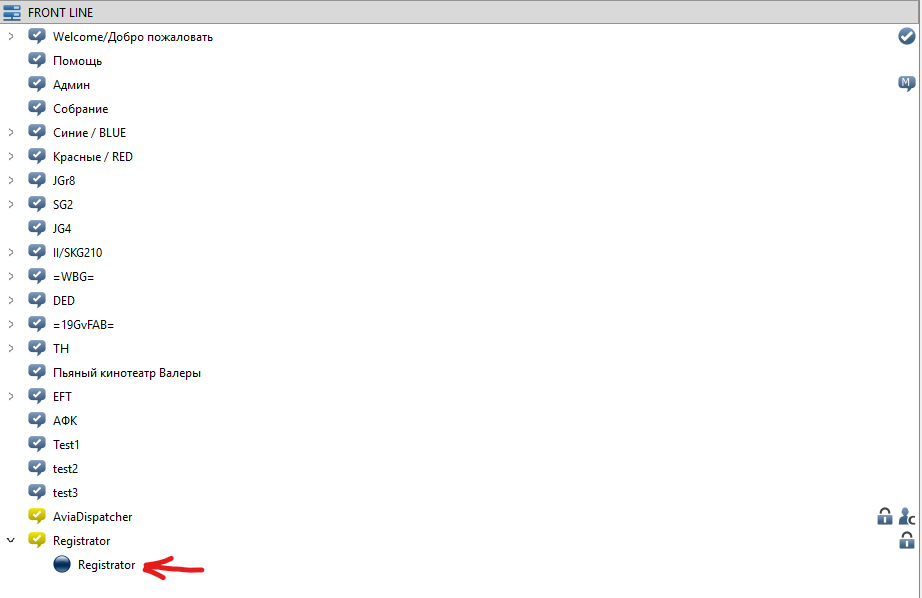
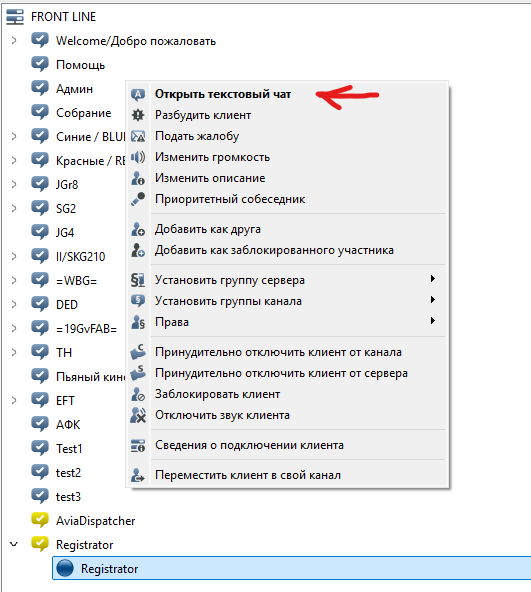
You need to right-click on the bot's name to open the context menu, and then select the option to open a text chat with the bot.
Attention!
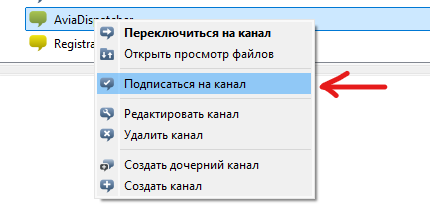
If you can't expand the channel (there is no bird to the left of the channel), right-click on the channel and select Subscribe to Channel
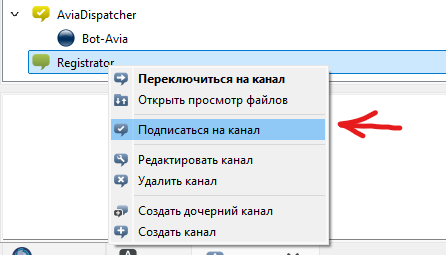
At the bottom of the program, a new tab with a private text chat will appear, with a text input field below it.
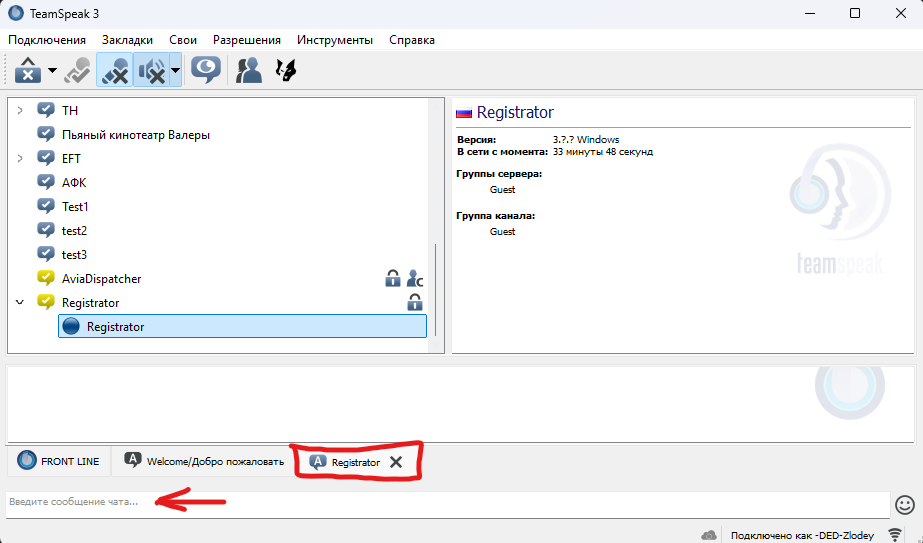
Paste the copied request into this field and press Enter. The Registrator bot will reply with the result of the operation in two languages: Russian and English.
The request itself looks something like this:
{"event":"link","gamerId":01,"registrationToken":"Token"}Attention!
The account linking request is secret! Under no circumstances should you share it with unauthorized people. Do not send it to other chats!
After a successful link, you should see the following response in the chat:

f you happen to reinstall your operating system (Windows), your TeamSpeak identity will no longer be tied to your previous setup, so the linking procedure must be repeated.
You can check your account status using a status request. To do this, copy the status request and send it to the Registrator in the private chat:
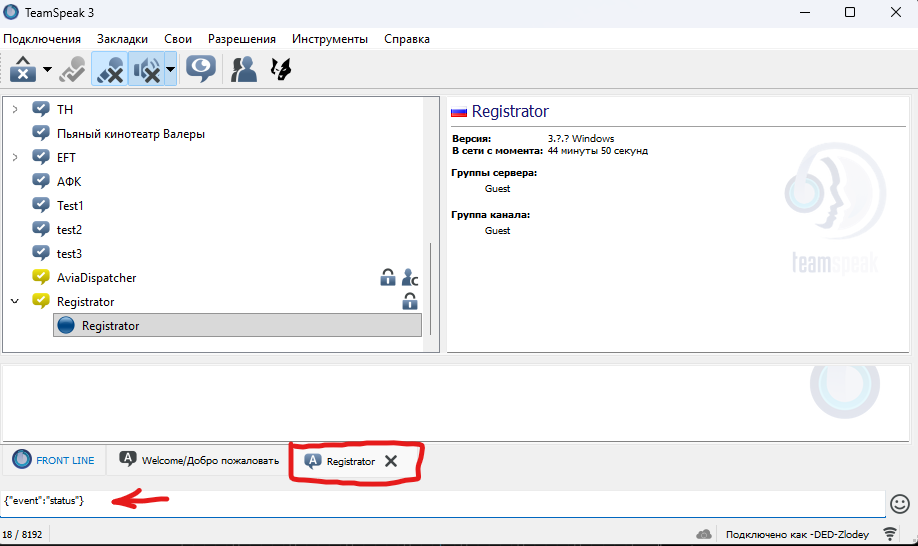
The Registrator will reply with your linking status:
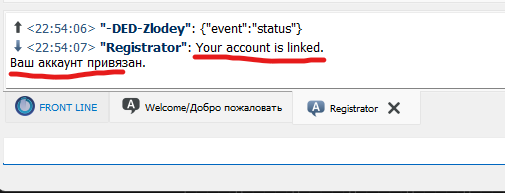
Congratulations! Your TeamSpeak account is now linked to the system account, and you will now hear the radio broadcasts while in the game and in our TeamSpeak simultaneously.
Setting up the Transmitter.
n order to transmit voice messages over the air, you need to set up a push-to-talk button and configure the transmission.
Depending on your client version and its localization, the location of certain menu items, buttons, their names, etc., may differ. I will describe the procedure for the TeamSpeak 3 client.
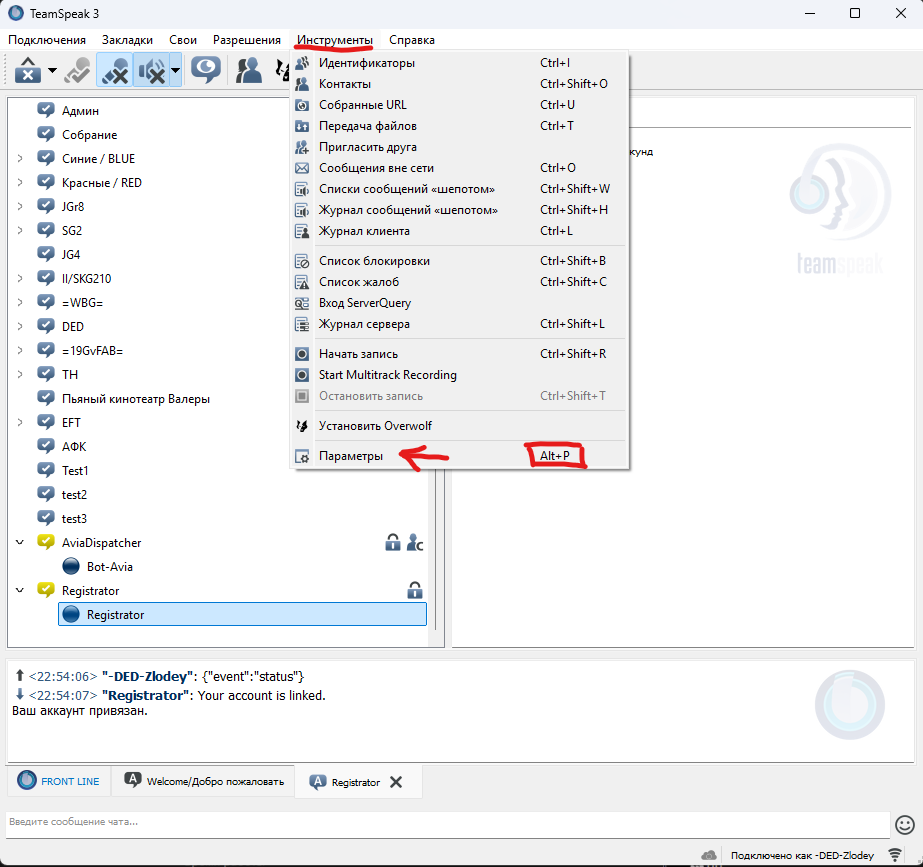
First, find the "Tools" section in the top menu, click on it, and select "Options" from the drop-down menu (or you can simply press the Alt + P key combination).
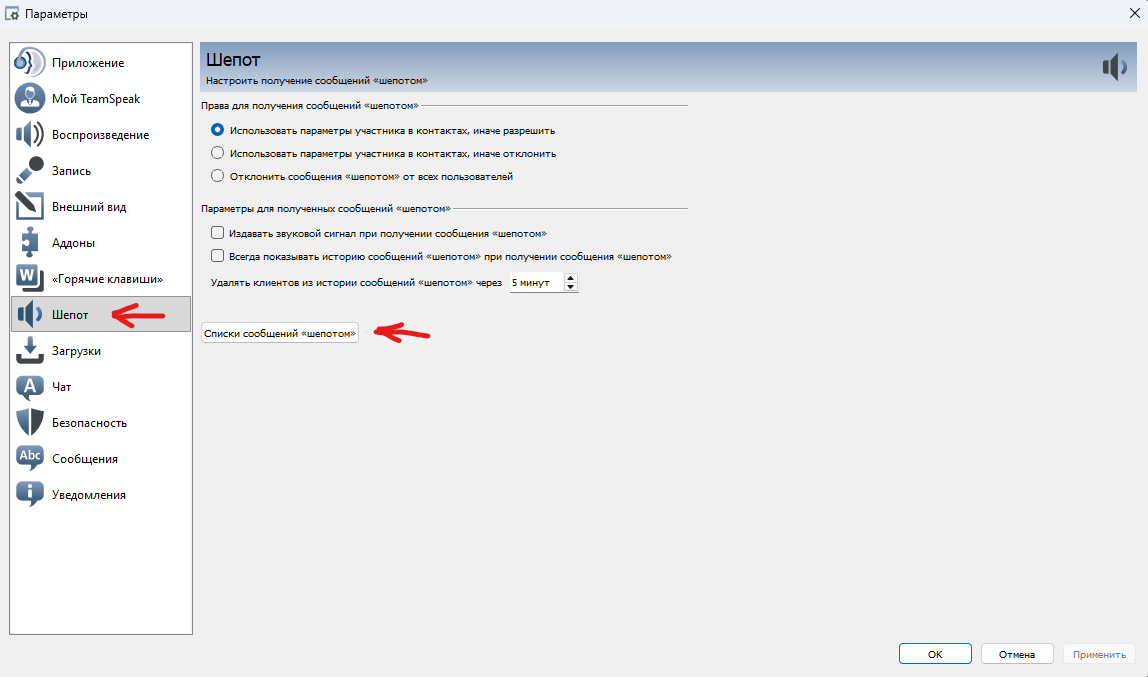
In the options window that opens, find the "Whisper" section.
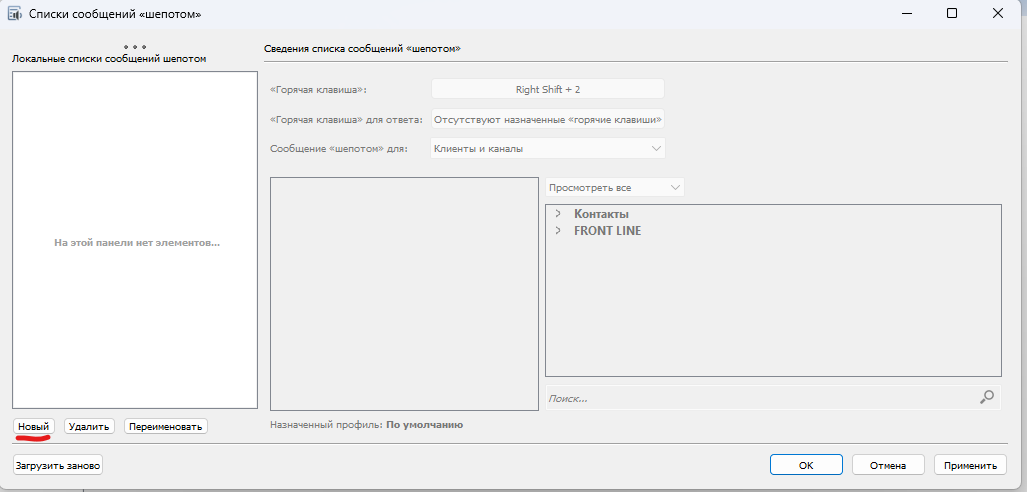
Click the "Whisper Lists" button. In the window that opens, click the "New" button.
After clicking, you will be prompted to bind a key that you will use to speak over the air. It looks like this:
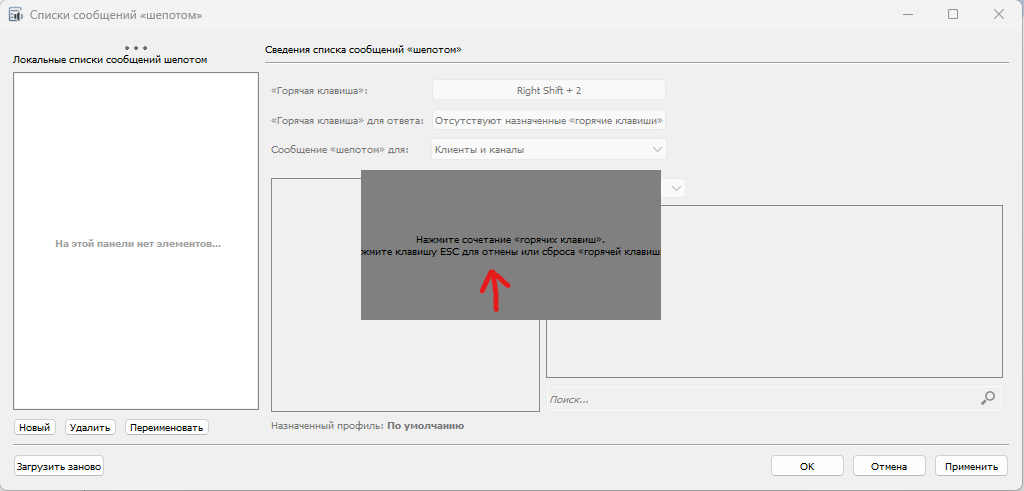
Assign a hotkey or key combination.
After that, you will see a screen similar to this, showing your local whisper list (on the left), your hotkey, and a list of FRONT LINE channels and clients:
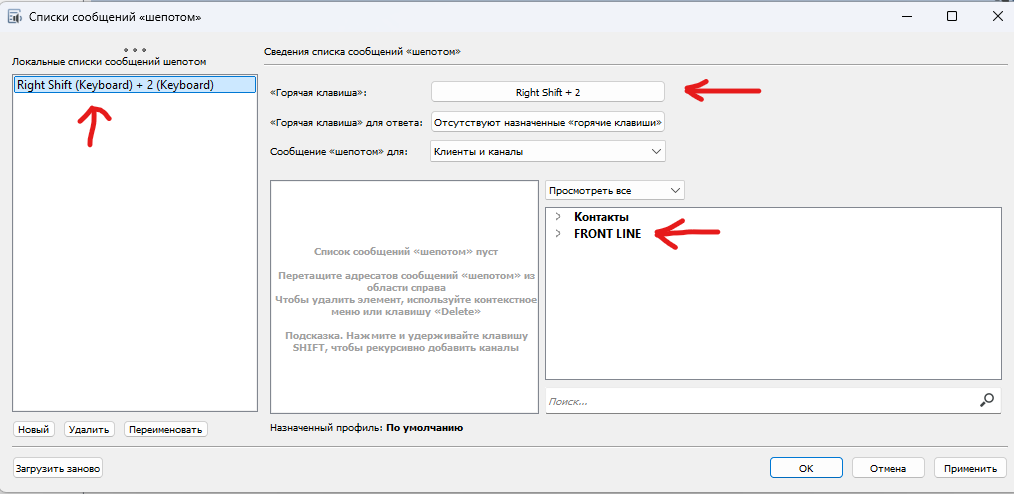
Expand the FRONT LINE list, then expand the "Channels" list, and find the channel named "AviaDispatcher" at the very bottom:
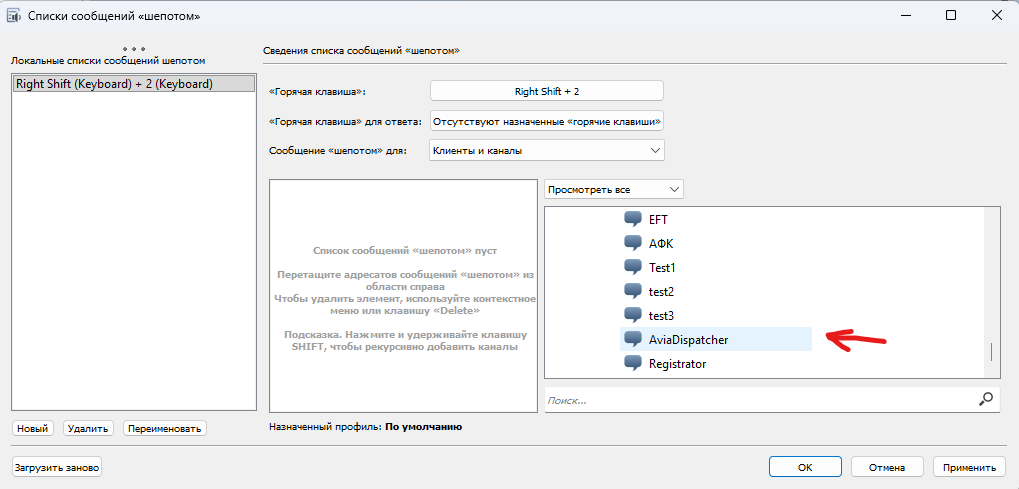
Double-click it or simply drag and drop it into the adjacent left field, then click the "Apply" button:
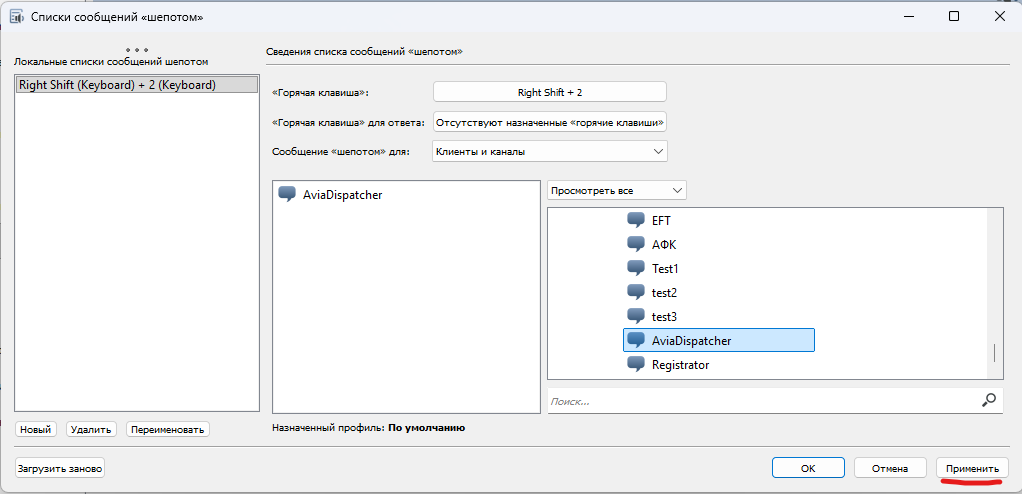
Congratulations! You can now speak over the radio using your assigned hotkey. Everyone who is within the range of your radio station and belongs to your coalition will hear your voice.
Attention! Important!
If you have set up the transmitter and you do not hear anyone during the check. Right-click on the AviaDispatcher channel and select Subscribe to the channel from the context menu.
Recommended Comments
Create an account or sign in to comment